Test Gateway Endpoint
Create S3 bucket
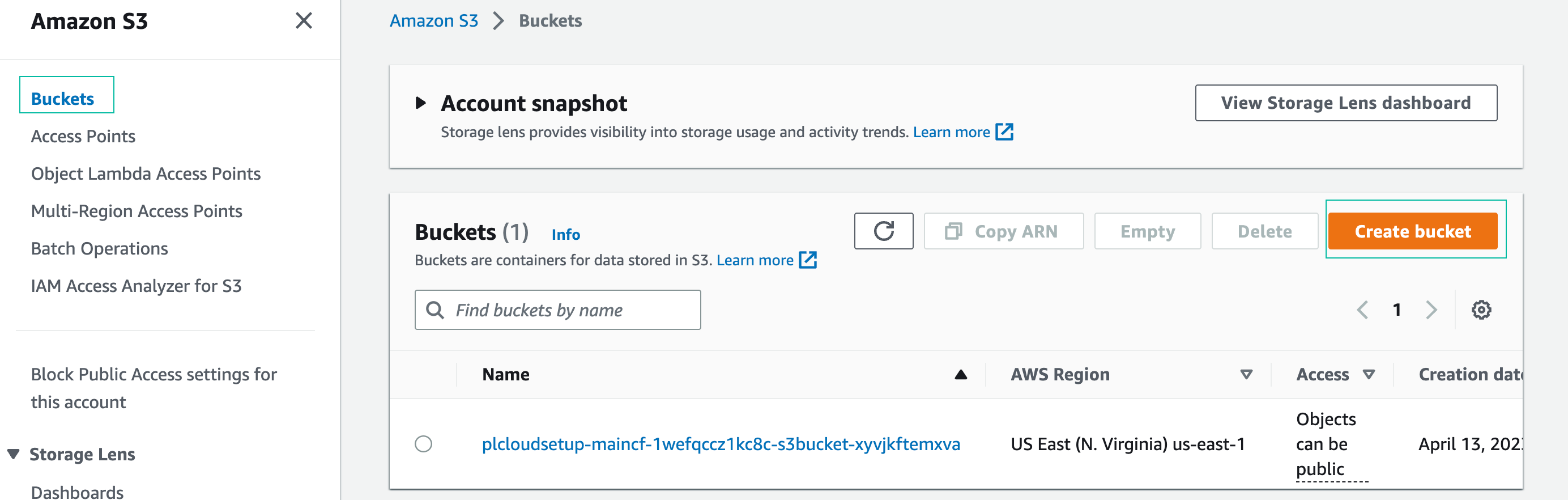
- Navigate to S3 management console
- In the Bucket console, choose Create bucket
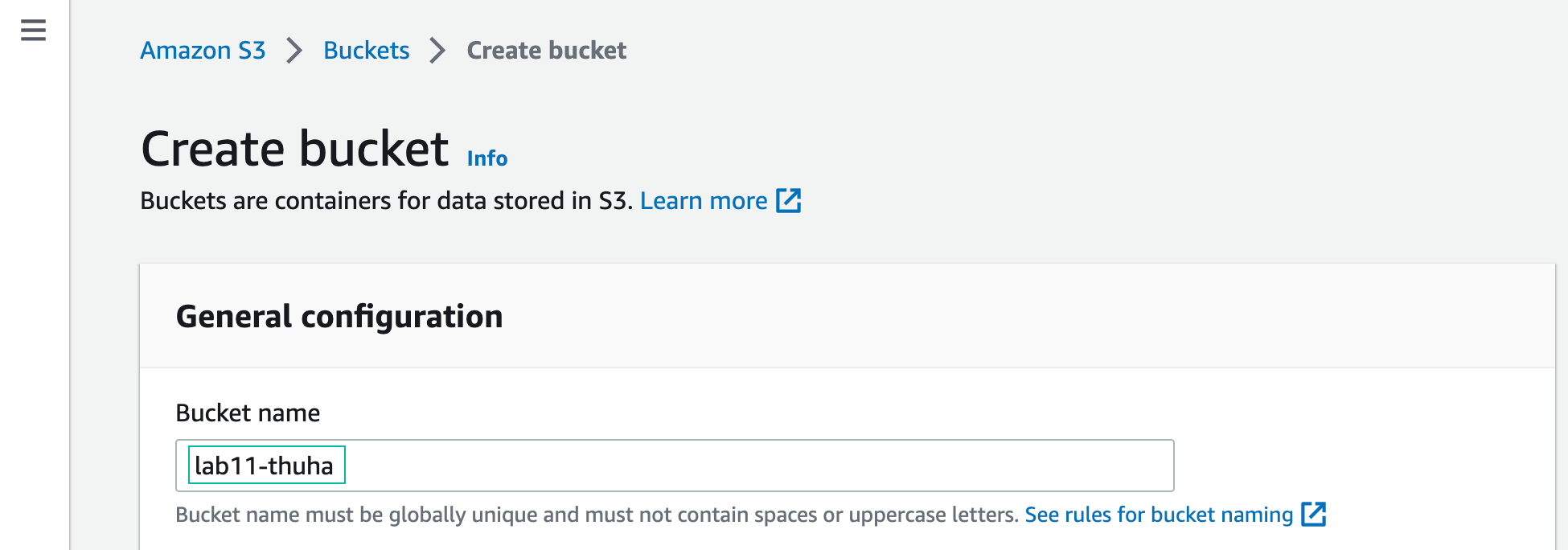
- In Create bucket console
- Name the bucket: choose a globally unique name (hint: lab<lab-number><your-name>)
- Leave other fields as they are (default)
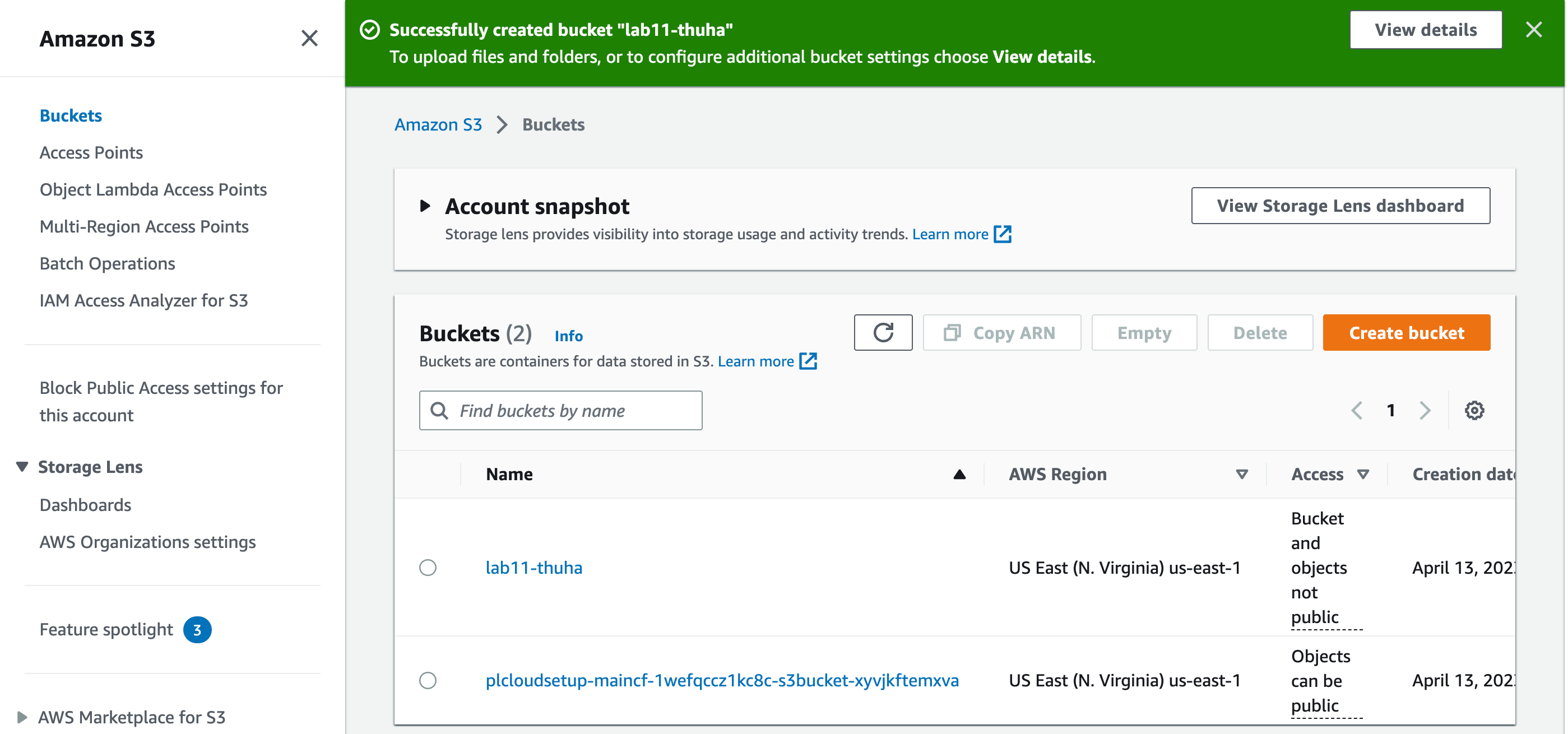
- Scroll down and choose Create bucket

- Successfully create S3 bucket
Connect to EC2 with session manager
In this workshop, you will use AWS Session Manager to connect to EC2 instances. Session Manager is a fully managed AWS Systems Manager capability. Systems manager allows you to manage Amazon EC2 instances and on-premises virtual machines (VMs) through a browser-based shell. Session Manager provides secure and auditable instance management without the need to open inbound ports, maintain a bastion host, or manage SSH keys.
Refer to First Cloud AI Journey Lab for an in-depth understanding of Session manager.
- In the AWS Management Console, type Systems Manager in the search box and press Enter:
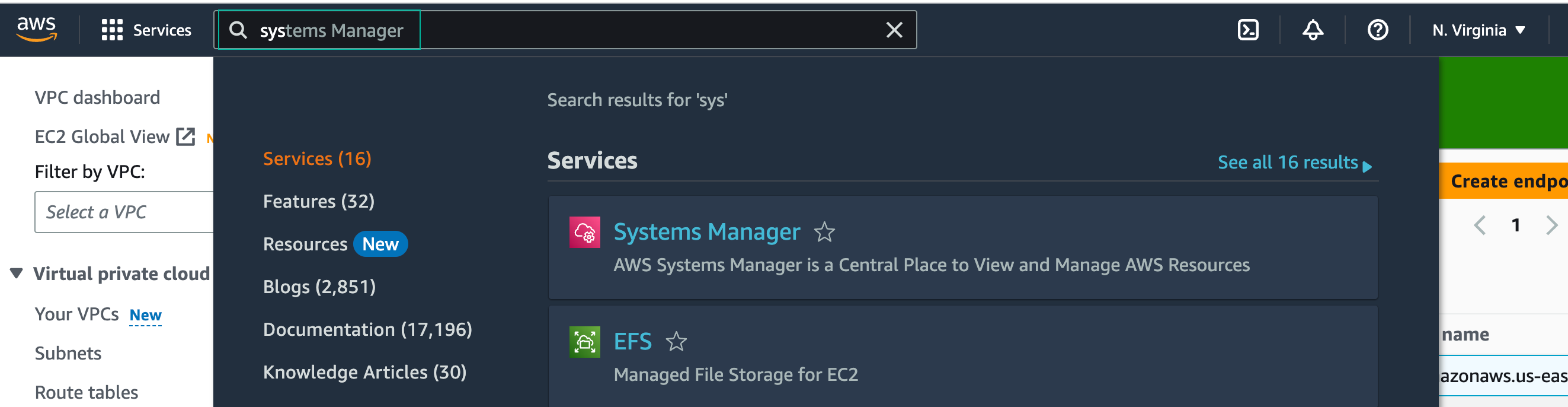
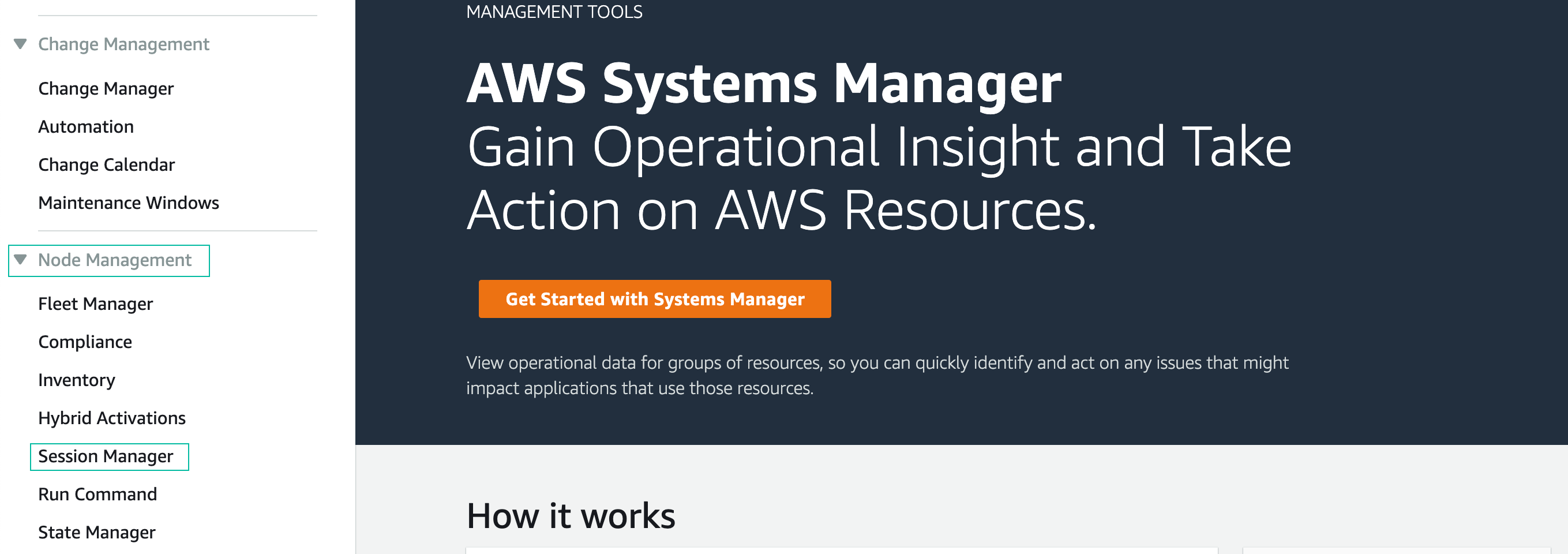
- From the Systems Manager menu, find Node Tools in the left sidebar and choose Session Manager:
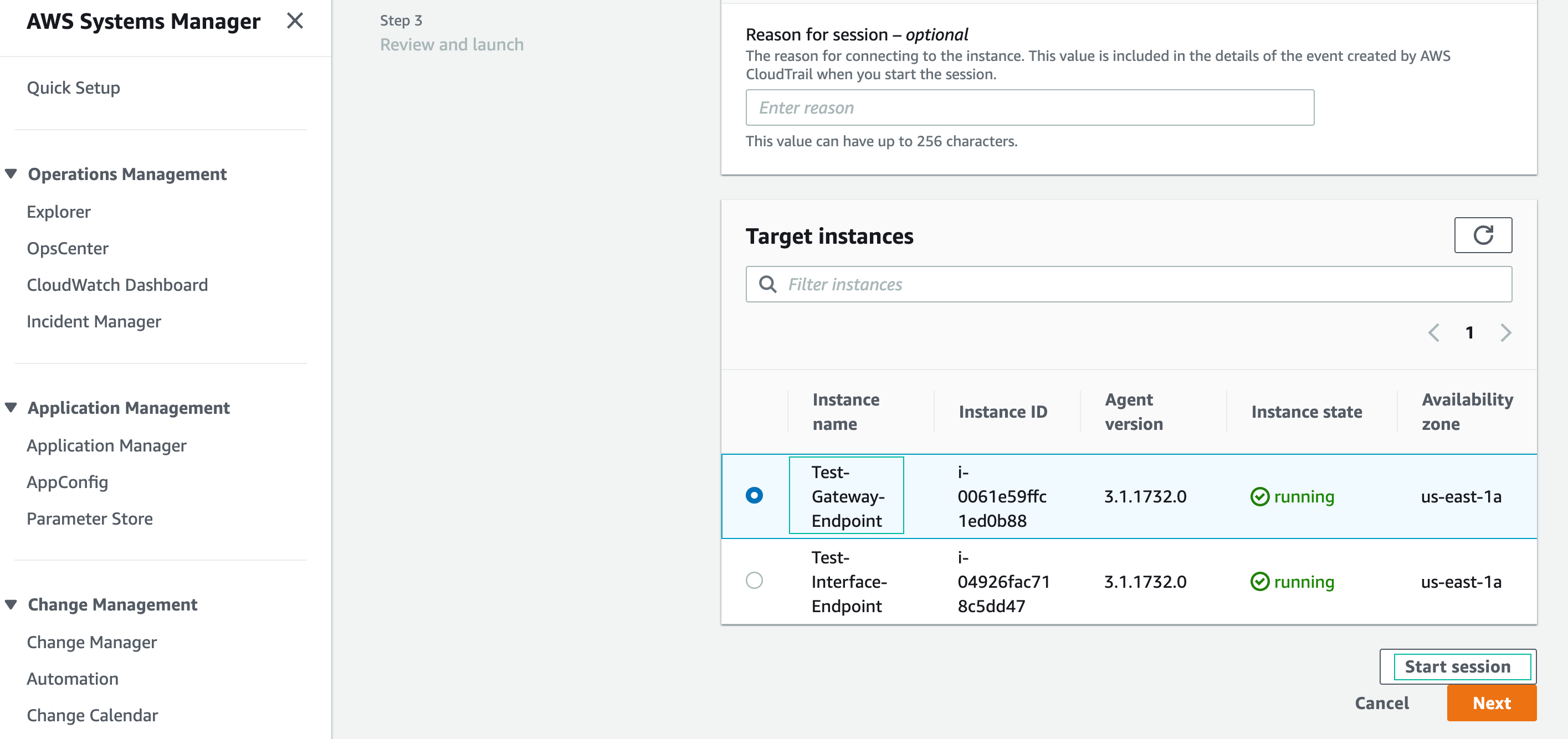
- Click Start Session, and choose the EC2 instance named Test-Gateway-Endpoint.
This EC2 instance is already running in “VPC cloud” and will be used to test connectivity to Amazon S3 through the Gateway endpoint you just created (s3-gwe).
Session Manager will open a new browser tab with a shell prompt: sh-4.2 $

You have successfully started the connection session to EC2 in VPC Cloud. In the next step, we will create an S3 bucket and a file in it.
Create a file and upload to s3 bucket
- Change to the ssm-user’s home directory by typing
cd ~in the CLI

- Create a file for testing with the command “fallocate -l 1G testfile.xyz”, a file named “testfile.xyz” with a size of 1GB will be created.

- Upload the file you just created to S3 with the command “aws s3 cp testfile.xyz s3://your-bucket-name”. Replace your-bucket-name with the S3 name you created.

You have successfully uploaded the file to your S3 bucket. You can now end the session.
Check object in S3 bucket
- Navigate to S3 console.
- Click the name of your s3 bucket
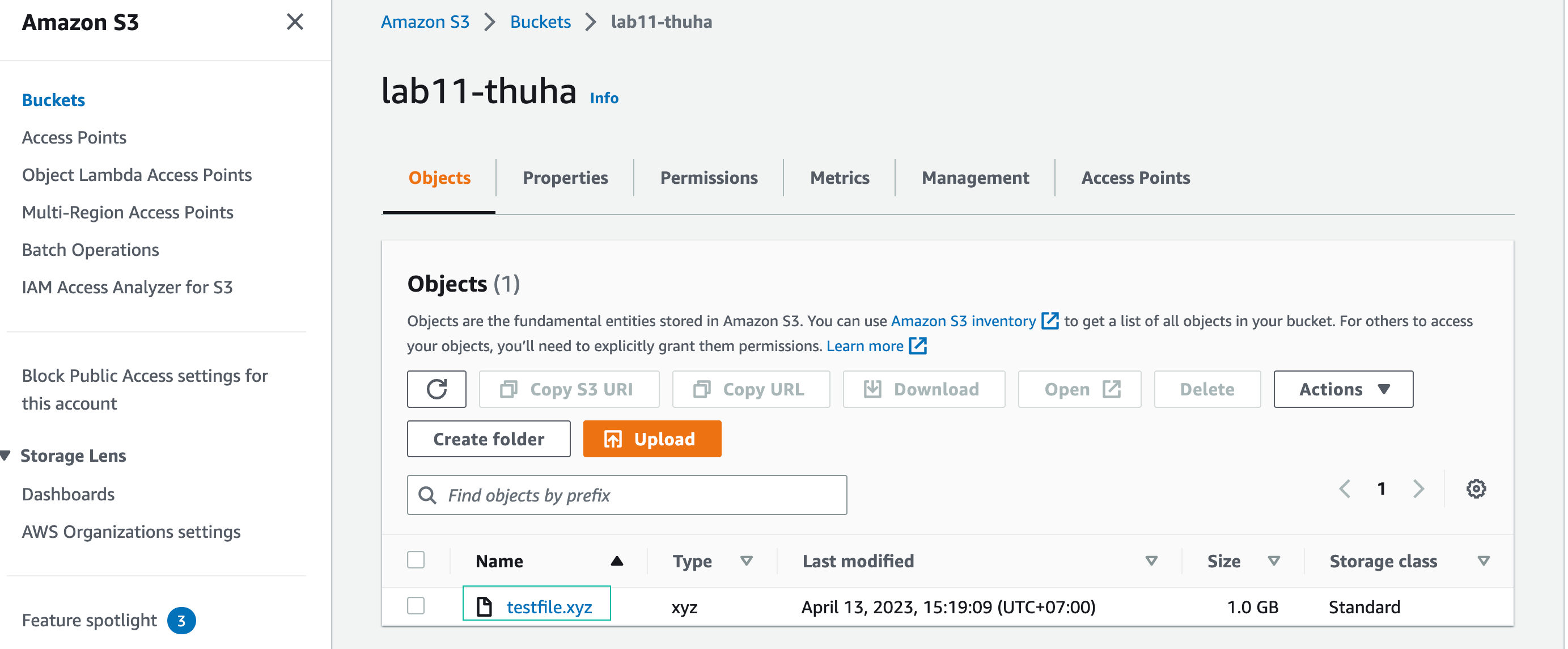
- In the Bucket console, you will see the file you have uploaded to your S3 bucket
Section summary
Congratulation on completing access to S3 from VPC. In this section, you created a Gateway endpoint for Amazon S3, and used the AWS CLI to upload an object. The upload worked because the Gateway endpoint allowed communication to S3, without needing an Internet Gateway attached to “VPC Cloud”. This demonstrates the functionality of the Gateway endpoint as a secure path to S3 without traversing the Public Internet.